Use Poker Assistant
Load a solution
Where the free heads-up set lives, how a pack installs, and what the sizes mean for your tablet.
You can find a solution for the game you play and have it loaded in Study.
- Poker Assistant open to the Solutions tab, as in Start here.

Before you start
The free heads-up set is the first thing that loads onto a fresh install, and it is already in your library if you followed Start here. Everything past two-handed play comes from a pack: a fixed bundle of solved spots for one table size and one structure. This lesson covers the rest of the library: how to filter it, and what a pack’s size on disk actually buys you.
Find a solution
- Open the Solutions tab and set the player-count filter above the list to the table size you play, from 2-handed up to 9-handed.
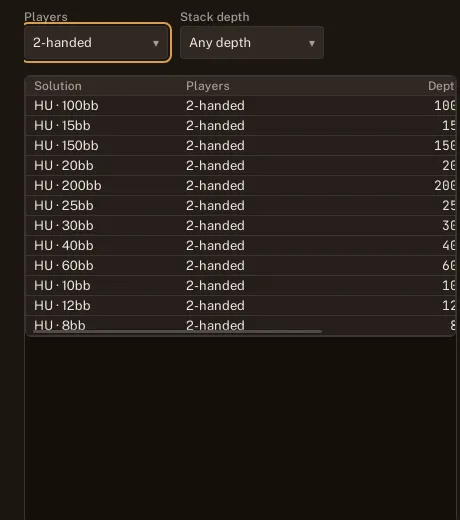
- Scan the filtered rows for the stack depth and structure that matches your game. Core covers 3 to 6 handed from 15bb to 100bb with no ante; Core Rake, Core Ante and Core Straddle cover the same seats with a different structure applied. Push/Fold covers 3 to 9 handed from 8bb to 12bb, for the short-stack game on its own.
- Select a row you do not already own. The detail pane names its structure and, once installed, its size on disk.
- Leave the filter on Any players if you play more than one table size. The unfiltered list groups every ring and deepstack pack by stack depth, so a wider game is one scroll away.
Install a pack
- Tap Install on a pack’s detail pane and wait for the download. Packs are big because they are complete: the free Heads-Up set is 7 MB, and Core, which covers 3 to 6 handed play from 15bb to 100bb, is 763 MB.

- Check a 9-handed pack’s stack depth before you buy it on Android: a single 60bb cell of that structure is 1.64 GB, over Google Play’s 1.5 GB cap, so the 9-handed pack there stops at 40bb, and the 60bb and 100bb cells ship as a separate pack on iPadOS and macOS. Once it finishes downloading, the pack moves to the Installed tab with its size and revision.
- Treat the purchase as a one-time cost. A pack is a fixed set of solved spots and does not change after you buy it, so the strategy you study this month is the strategy you have next month too; the app itself keeps updating for free.
- If you reinstall the app, open Settings and use Restore purchases to bring back what you already own, without paying for it twice.

Read the result
A loaded solution is what turns the Study screen from empty to a spot you can read: the library entry becomes the grid and the ladder for every seat in that structure. The heads-up set covers two-handed play at every stack depth for free; a pack buys the same coverage for a bigger table, priced by how much it solved rather than by the game.
Pick the smallest pack that covers the table size and stakes you actually sit at. A 763 MB Core install is wasted if you only ever play heads-up, and a 40bb 9-handed pack will not cover a 100bb table on Android.
Size on disk tracks coverage: a pack that spans more stack depths and structures is bigger, at the same speed and precision as a smaller one. Once it is installed, loading it into Study works exactly the way the free heads-up set did in Start here.